

When you’re developing your MCP server locally, you have several ways to test it. You could connect it to a standard AI client, but that often hides the underlying protocol details, making it difficult to debug specific requests. Alternatively, you could use command-line tools like curl, but this can be cumbersome, especially when dealing with complex authentication flows and manually crafting JSON payloads. This is where MCP Inspector shines. It’s a purpose-built graphical tool that provides the best of both worlds. It gives you a clear, interactive interface to see your server’s available tools, handles complex authentication for you, and allows you to directly execute tools with specific inputs, no natural language prompting required. This direct approach makes it an invaluable asset for efficient debugging and development.Documentation Index
Fetch the complete documentation index at: https://auth0-genai-ui-styling-updates.mintlify.app/llms.txt
Use this file to discover all available pages before exploring further.
Launching MCP Inspector
First, make sure your MCP server is running in a separate terminal. Then, open a new terminal window and run the following command to launch the MCP Inspector: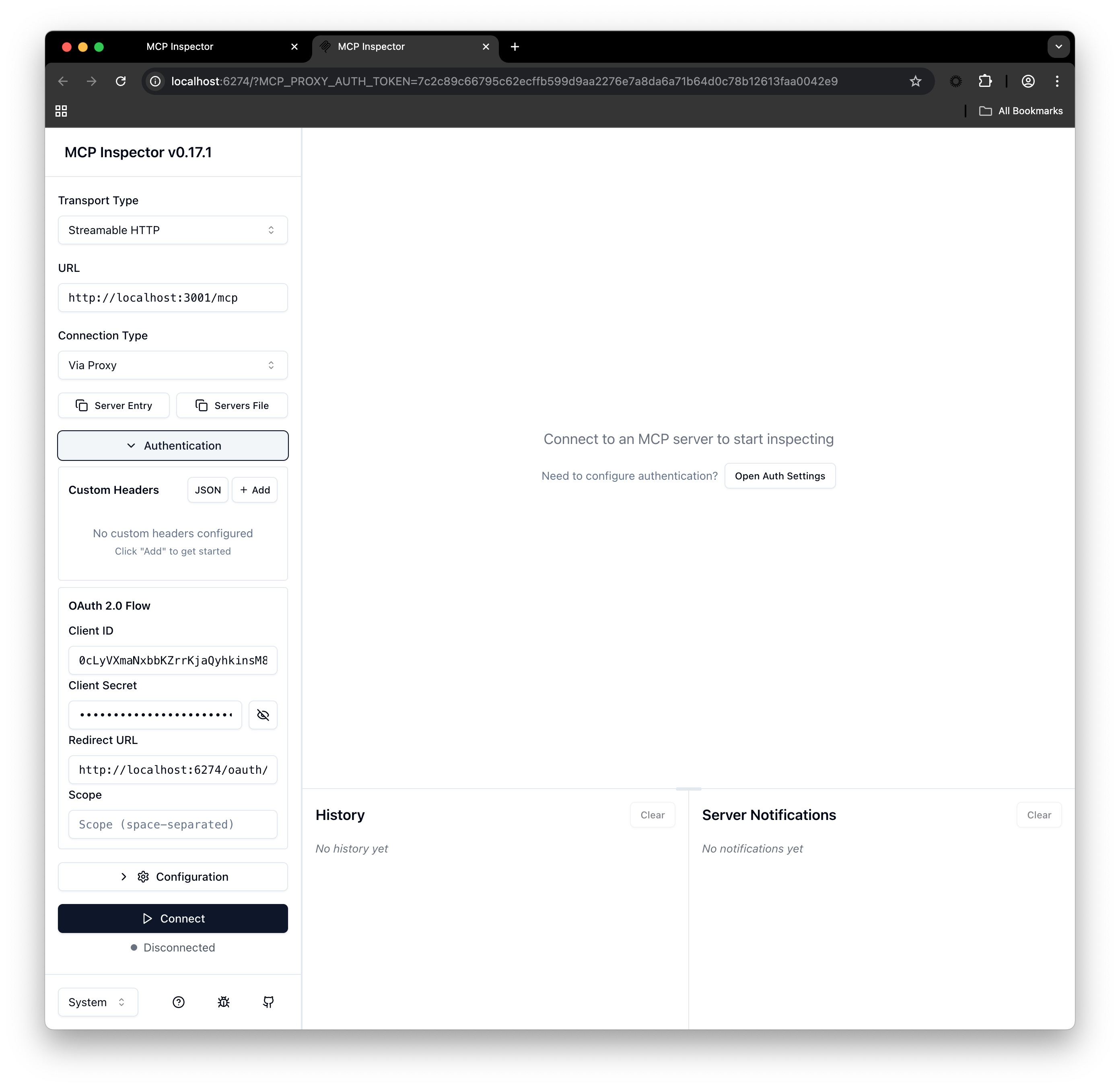
Connect to your MCP server
Once the Inspector is open, you need to configure it to connect to your local MCP server.- Set the Transport Type to
Streamable HTTP. - Enter your server’s URL, which is typically
http://localhost:3001/mcp.
- Static Client Registration
- Dynamic Client Registration
Create an Application to Represent Your MCP Client
Run this command to create the client:Client ID and Client Secret from the command output.In the left navigation menu, click on Authentication and enter the Client ID and Client Secret you obtained when you registered your application.- Click Connect.
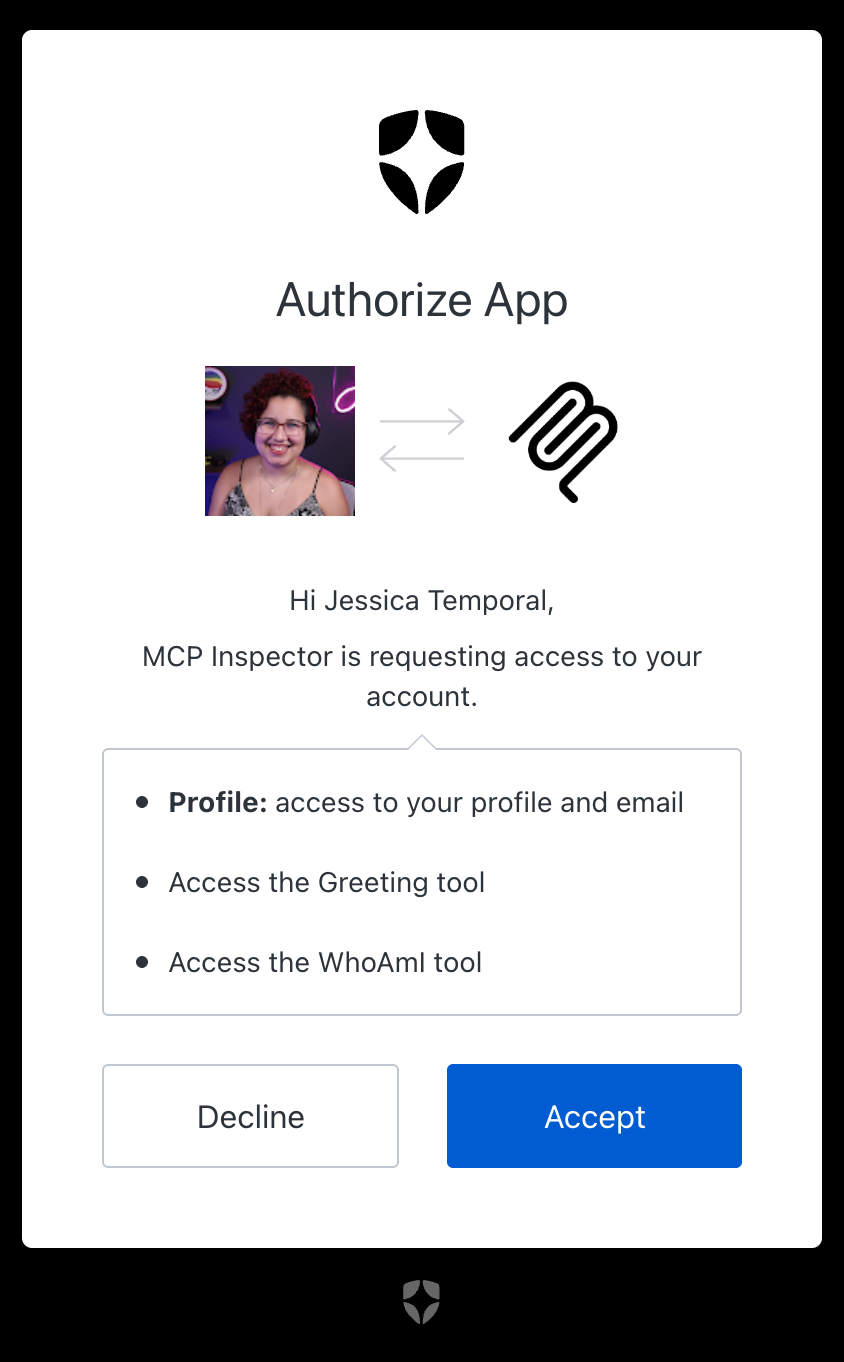
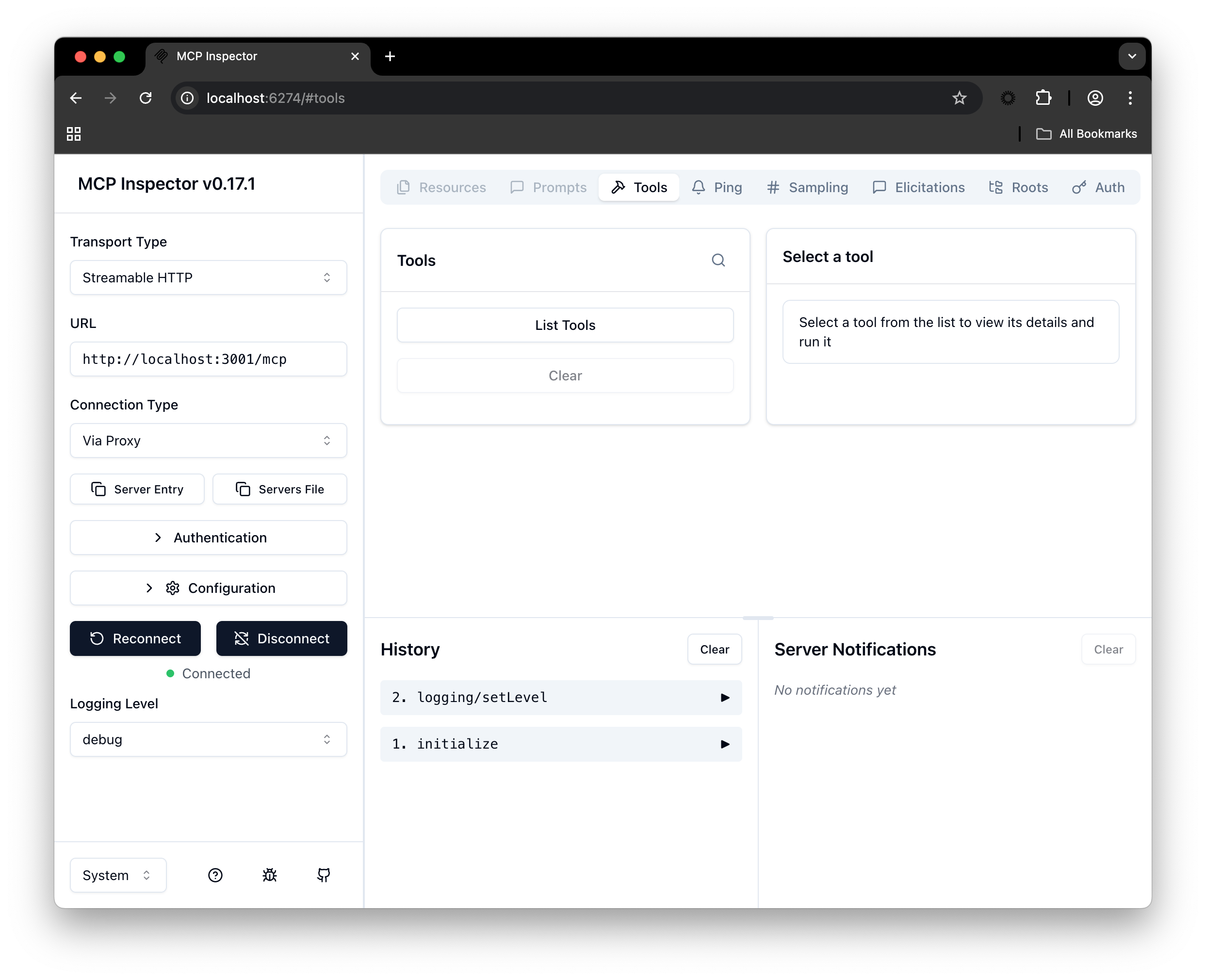
Run your tools
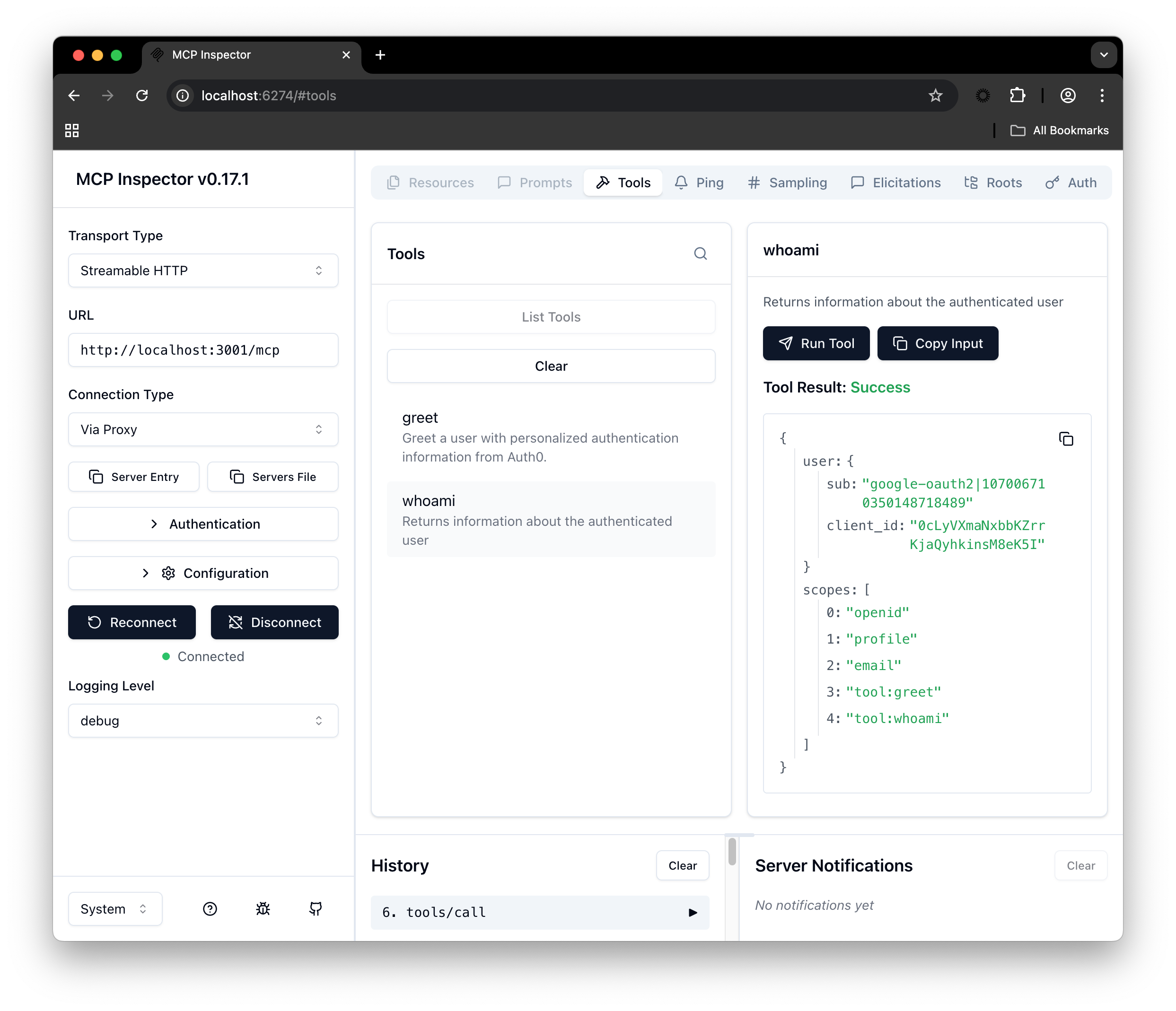
After authenticating, you can run the tools the MCP server exposes for your user. These tools may be different per user depending on your server configuration.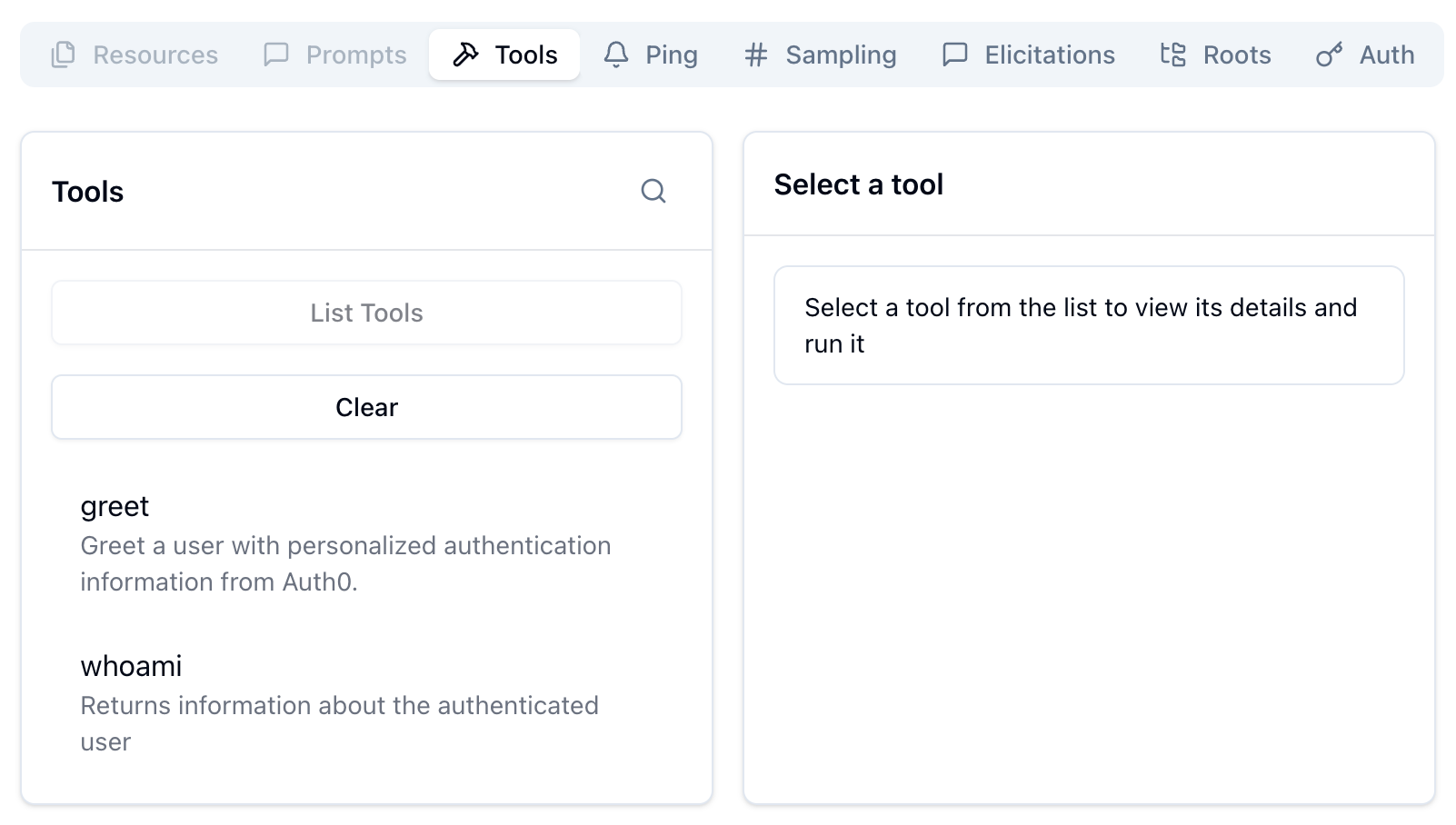
Troubleshooting common issues
If you run into problems, here are a few things to check first:Connection failed:
- Ensure your MCP server is running in a separate terminal.
- Double-check that the URL (http://localhost:3001/mcp) in the Inspector matches the port and endpoint your server is configured to use.
Authentication errors:
- Verify that the Client ID and Client Secret you entered in the Inspector are correct and have no extra spaces.
- Make sure you’re logging in with a user account that exists in your authentication provider (e.g., Auth0).
No tools appear after login:
- This usually means the user you logged in with doesn’t have the required roles or permissions.
- Check your authentication provider to ensure the user has been assigned the correct roles (e.g., “Tool User” or “Tool Administrator”).
- Confirm that the scopes defined in your server’s OAuth configuration match the permissions required by the tools.