

These Connections allow users to log in to your application using those identities (such as log in with Google), and share their data from that application to your application. Auth0 standardizes the authentication process from various sources to simplify the integration of different identity providers. For AI agents that utilize Token Vault, Connections are essential. They allow your AI agents to securely access external APIs, such as Google Calendar or Microsoft 365, on behalf of the user. This is achieved by the user granting your application consent to access their data through these Connections.Documentation Index
Fetch the complete documentation index at: https://auth0-genai-ui-styling-updates.mintlify.app/llms.txt
Use this file to discover all available pages before exploring further.
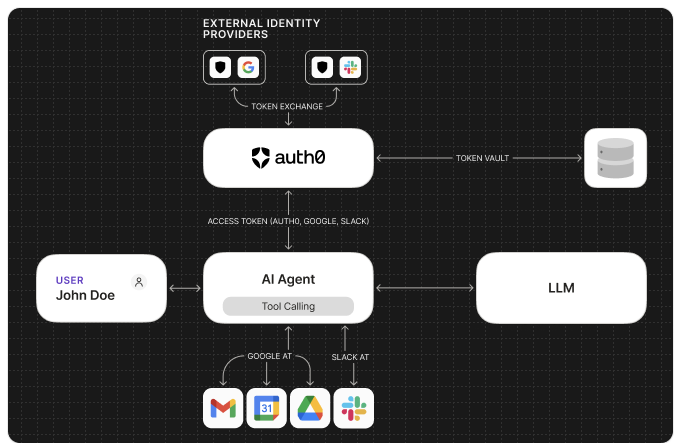
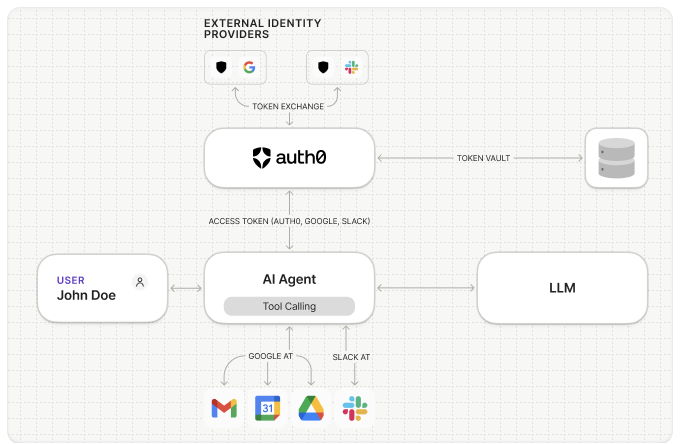
Supported Connections
Auth0 provides a large number of Connection types for use with your AI Agents, including:- Google and Google Workspace
- Microsoft and Microsoft Azure AD
- GitHub
- Slack
- OpenID Connect (OIDC)
- Custom Social Connections
View All Integrations
Configuring Connections for Token Vault
To enable your AI agents to call APIs on a user’s behalf, you will need to:Obtain client credentials
To enable your application to call APIs on a user’s behalf, you will need to
obtain the Client ID and Client Secret from the Connection you want
to use.
Create and configure the Connection
In the Auth0 Dashboard, navigate to Authentication and select the
desired Social or Enterprise Connection type, and configure using
the obtained Client ID and Client Secret.
Request the necessary scopes
When configuring the Connection, you need to specify the default scopes
(permissions) your application requires to access the user’s data from the
third-party API.
Make sure to select the following scopes in the Auth0 Dashboard:
Make sure to select the following scopes in the Auth0 Dashboard:
- User Profile: Requests basic profile information. Exact name depends on the connection.
- Offline Access: Requests an Auth0 refresh token. Exact name depends on the connection.
Enable Connected Accounts for Token Vault for the Connection
In the Purpose section, toggle on
Use for Connected Accounts for Token Vault and save the Connection. To learn more, read Connected Accounts for Token Vault.